For Salesforce Field Service Lightning (FSL) administrators and developers, managing complex, multi-technician jobs requires moving beyond single-resource scheduling. FSL Crew Management provides the technical framework to model, schedule, and manage groups of service resources as a single entity. This technical deep dive explores the architecture, setup, and practical implementation of Crews within the FSL ecosystem.
Technical Architecture of Crew Management
At its core, Crew Management introduces a new data model and scheduling logic:
-
The
CrewObject: A custom object (part of the FSL managed package) that acts as a container for multipleServiceResourcerecords. ACrewrecord has a designatedCrewLeader(aServiceResource) and aCrewHomeBase(aServiceTerritory). -
Unified Scheduling Entity: The scheduling engine treats a
Crewas a single schedulable resource. When aServiceAppointmentis assigned to a Crew, the system checks for a common time window where all memberServiceResourcesare available, respecting their individual operating hours and existing assignments. -
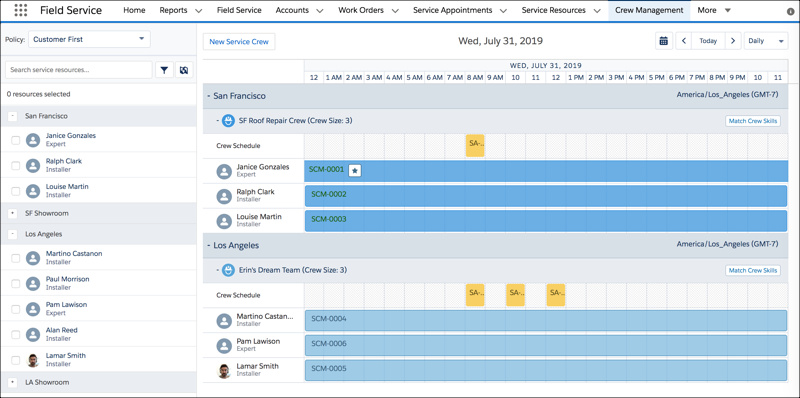
Gantt Integration: Crews are rendered as distinct resources on the Dispatcher Console Gantt chart. Dispatchers can drag-and-drop service appointments onto a Crew’s timeline, which automatically books all members.
Prerequisites and Edition Requirements
Before configuration, verify your org meets the following technical criteria:
-
Required Editions: The Field Service core features, including Crew Management, are available in Enterprise, Unlimited, and Developer Editions.
-
Managed Package: Crew Management is a feature of the Field Service managed package. Ensure the latest version is installed in your org.
-
User Permissions: Users requiring access to the Crew Management tool must be assigned one of the following permission sets:
-
FSL Admin Permissions -
FSL Dispatcher Permissions
-
Technical Configuration and Setup
Follow this step-by-step guide to enable and expose the Crew Management functionality.
Step 1: Enable Crew Management
-
Navigate to Setup > Field Service Settings.
-
Locate and enable the Crew Management feature toggle.
Step 2: Expose the Crew Management Tool to Users
Administrators must explicitly add the Crew Management interface to the org. This can be done via a Visualforce tab or a Lightning component.
Option A: Create a Visualforce Tab (Classic & Lightning)
-
In Setup, navigate to User Interface > Tabs > Visualforce Tabs and click New.
-
From the dropdown, select the
FSL.CrewManagementVisualforce page. -
Label the tab “Crew Management”.
-
Configure the tab visibility and add it to the necessary apps.
Option B: Embed the Lightning Component (Lightning Experience)
-
Navigate to the Lightning App Builder for the relevant app page (e.g., the Service Console).
-
Drag and drop the
Crew Managementcustom Lightning component from the list onto the canvas. -
Important: This component contains a detailed chart. Allocate a significant portion of the page layout, preferably a full-width region, to ensure proper usability.
-
Save and activate the page.
Step 3: Configure Object and Page Permissions
Even with the tool exposed, users need explicit permissions for the underlying Apex classes and Visualforce pages.
-
Create a new Permission Set (e.g., “FSL Crew Management Access”).
-
Grant access to the following objects and elements:
-
Tab Settings: Assign the
Crew Managementtab (if using Option A). -
Visualforce Page Access: Enable access and set “Enabled” for the following pages:
-
FSL.CrewManagement -
FSL.CrewsResourceLightbox -
FSL.CrewsSaLightbox -
FSL.CrewsWorkorderLightbox -
FSL.CrewsWorkorderLineItemLightbox
-
-
Apex Class Access: Enable access for the
FSL.CrewManagementApex class.
-
-
Assign this permission set to all FSL Administrators and Dispatchers who need to create or manage crews.
Use Case: Technical Implementation for a Telecom Tower Crew
Scenario: A telecommunications provider needs to schedule a 4-person team for a cell tower upgrade. The crew consists of a Structural Engineer (Crew Leader), an RF Technician, an Electrician, and a Safety Supervisor.
Technical Process Flow:
-
Crew Creation:
-
An FSL Admin navigates to the Crew Management tab/component.
-
Clicks New Crew and creates a record named “Tower Upgrade Team – Northeast.”
-
Assigns the Structural Engineer as the
CrewLeader. -
Sets the
CrewHomeBaseto the central depot territory. -
Adds all four
ServiceResourcerecords asCrewMembers. TheCrewSizefield auto-populates to4.
-
-
Scheduling Logic:
-
A Dispatcher receives a
ServiceAppointmentfor “Tower HW Upgrade” with a 6-hour estimated duration. -
In the Dispatcher Console Gantt, the “Tower Upgrade Team – Northeast” appears as a single resource.
-
The dispatcher drags the appointment onto the crew’s timeline.
-
The FSL scheduling engine executes a query to find a 6-hour window where all four members have no conflicting
ServiceAppointmentassignments and are within their operating hours. -
Upon a successful schedule, a
AssignedResourcerecord is created for each of the fourServiceResources, all linked to the sameServiceAppointment.
-
-
Field Execution & Data Model:
-
The Crew Leader uses the Field Service Mobile App. The
WorkOrderandServiceAppointmentare visible to all crew members. -
The Crew Leader can report time for the entire crew using the “Log Crew Time” function, which creates multiple
TimeSheetandTimeSheetEntryrecords in a single transaction. -
Updating the
ServiceAppointmentstatus to “Completed” by the Crew Leader reflects the status for the entire team.
-
Troubleshooting and Best Practices
-
Gantt Visibility: If a Crew does not appear on the Gantt, verify that the
Crewrecord is active and has at least oneCrew Memberassigned. -
Scheduling Failures: If scheduling to a Crew fails, inspect the individual members’ calendars. A scheduling conflict for any single member will prevent the entire crew from being booked.
-
API Access: The
Crewobject and its related fields are accessible via the Salesforce API, allowing for integration with external HR or workforce management systems for automated crew provisioning. -
Reporting: Create custom reports on the
Crewobject to track utilization, comparingCrewHoursScheduledversusCrewHoursAvailable.
Conclusion
FSL Crew Management provides a robust and scalable data model for handling team-based service delivery. By correctly configuring the required permission sets, Visualforce pages, and Lightning components, administrators can empower dispatchers with a powerful drag-and-drop tool. This technical implementation shifts the scheduling paradigm from managing individual resource calendars to orchestrating collective team capacity, a critical capability for executing complex field service operations efficiently.